
If you manage documentation, technical writing, or AI training materials, you know the drill. You need to explain a new software feature. That means taking a screenshot, opening it in an editor like Snagit or Canva, or maybe even in the macOS Preview app (damn it), adding a colored box, a tooltip, typing some text, exporting it, and uploading it to your help center.
When you have to do this fifty times a week, that context-switching becomes exhausting.
When I first started working on the documentation project for my current company, the pre-existing screenshots looked pretty standard: the usual bright red arrows and basic boxes. To elevate them, I transitioned my workflow into Canva, spending extra time adding custom boxes, bullet points, and sleek arrows. While the result was much better, the constant exporting and uploading was a massive time sink.
Ultimately, I decided to build a dedicated tool to solve this exact problem—turning operational bottlenecks into a functional, native-feeling workflow.
So, as a side project, I built Annotator Pro.
Instead of acting as a traditional screen-capture tool, Annotator Pro uses the HTML5 Canvas API and Fabric.js to drop an invisible sheet of digital glass directly over the live webpage. This allows me to draw, drag, resize, and style elements before the camera snaps.
To give you an idea of how it works, here is the current native toolkit I built into the extension’s floating dark-mode UI:

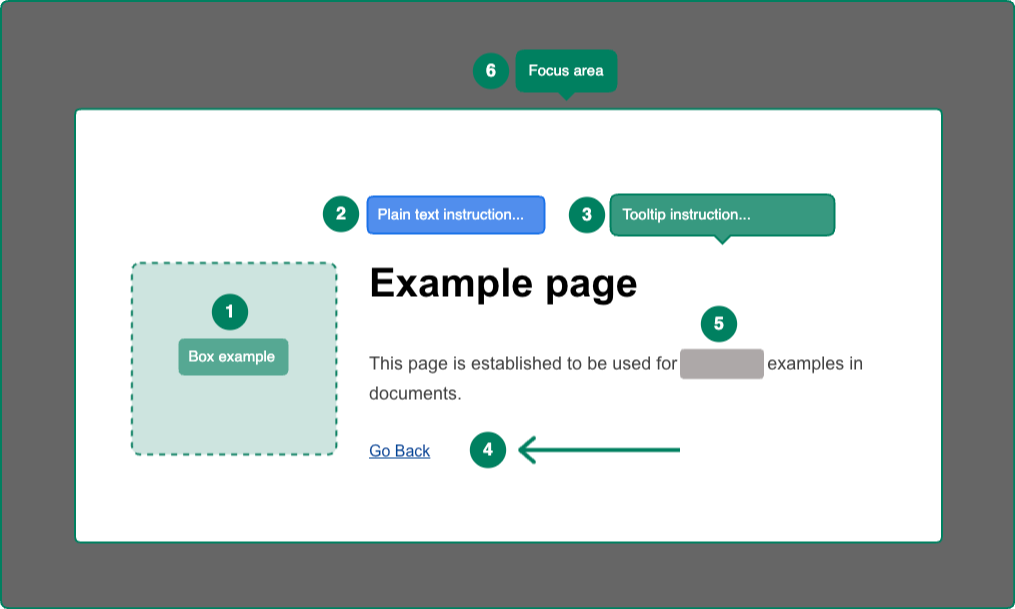
The Annotator Pro Toolkit
- ✂️ Crop Area: Define the exact section of the webpage you want to capture. The tool mathematically slices your final image down to these specific coordinates before export.
- 🔦 Focus (Spotlight): Drops a cinematic shadow over the entire webpage while punching a crystal-clear, resizable hole over your target element. It completely removes background distractions.
- ❶ Badge: An auto-incrementing numbering tool. Click the canvas to drop a “1”, click again for a “2”, and so on. It is an absolute lifesaver for outlining multi-step tutorials.
- 💬 Text & Tooltip: Standard text boxes and directional tooltips equipped with smart padding. The tooltip automatically calculates a perfectly centered directional arrow at its base, mimicking native software popovers.
- ↗️ Arrow: A modern, rounded chevron pointer. Unlike standard canvas shapes that warp or get “fat” when you stretch them, this arrow mathematically recalculates its scaling so the pointer remains perfectly sharp and proportional.
- ⬛ Redact: The standard for administrative privacy. Drops an opaque, solid block to instantly hide sensitive customer emails, order numbers, or internal IDs.
- 🟦 Box: Draws clean, customizable highlight rectangles. You can adjust the border radius for softer corners, switch between solid and dashed lines, and apply semi-transparent fills.
The Global Frame & Settings
Every tool is powered by a decoupled settings section. Instead of a single color picker, you have independent controls for Text Color, Body Fill, and Borders.
But you aren’t just limited to the inside of the screenshot. If you click the empty canvas background, you access the Page Frame settings. When you export the image, the extension acts as a digital darkroom on the fly: cutting out the outer corners to make them truly transparent, and applying a customizable outer border wrap to the entire image.
A Persistent Workflow
The biggest time-saver has been bypassing the traditional “Downloads” folder entirely. I integrated the modern Clipboard API, so clicking “Copy” processes the cropped, framed image and sends it straight to my clipboard for immediate pasting into Slack, Jira, or a help center draft.
I also built the extension to maintain a persistent session. When you click Save or Copy, the toolbar immediately returns with all added blocks in their place. If you spot a typo in your tooltip after copying it, you don’t have to start over. Furthermore, it’s tied to chrome.storage.local, permanently remembering my preferred border radiuses, opacities, and color codes across browser sessions.
Under the Hood
The technical challenges behind building this were surprisingly fun to solve. Injecting a UI into unpredictable host environments (like complex e-commerce admin dashboards) requires some defensive architecture.
To ensure the toolbar survives strict security scripts (like DOMPurify), the icons are built using pure CSS Masks rather than raw <svg> tags. To prevent aggressive global stylesheets from distorting the canvas geometry, the UI is injected directly into the <html> root with isolated resets. Finally, to bypass sandboxed <iframe> restrictions that block standard downloads, the extension securely routes the finalized image data through a background Service Worker.
The result is a workflow that cuts my screenshot time in half.
It’s currently completely open-source and respects local privacy (no backend databases or cloud tracking). If you want to load it into your own browser and take it for a spin, I’ve made the code public here: Link to GitHub Repository:
- Download this repository as a `.zip` file and extract it, or clone it via terminal: `git clone https://github.com/Muzantrop/annotator-pro.git`
- Open Chrome and navigate to `chrome://extensions/`
- Toggle on **Developer mode** in the top right corner.
- Click **Load unpacked** in the top left corner.
- Select the extracted `annotator-pro` folder.
- Pin the extension to your toolbar and click it to initialize the canvas.